

Connection paths
Four connection paths are available. Your IT admin selects one during deployment. End users see the same interface regardless.Requirements by connection path
All paths need:- Claude for Excel, PowerPoint, Word, or Outlook installed from Microsoft AppSource or via admin deployment.
- Microsoft 365 with Entra ID for admin consent and token issuance.
- For Outlook: Microsoft Graph admin consent for
Mail.ReadWrite,Calendars.Read,User.Read, andoffline_access, granted via Anthropic’s app or your own Entra app registration. - For Outlook: Claude Opus 4.7 or later, or Claude Sonnet 5 or later, available on your connection path.
Network allowlist
The add-in requires access to specific domains. The required domains differ depending on whether your organization uses the Anthropic API directly (1P) or a third-party platform (3P).pivot.claude.ai) serve the add-in’s interface, feature configuration,
and operational telemetry, not prompt or response content.Dictation is an exception. It is available
only when users sign in with a Claude account and inference goes to
api.anthropic.com. The add-in sends the user’s Claude access token and
streams the user’s audio over a WebSocket connection to pivot.claude.ai,
which forwards them to Anthropic’s transcription service and returns the
transcribed text.Anthropic API (1P)
Use this table if your organization signs in with Claude accounts and inference goes toapi.anthropic.com.
bridge.claudeusercontent.com through the same
proxy egress as claude.ai and api.anthropic.com, for example by
placing it in the same Zscaler app segment or Netskope steering policy. If
you cannot route it that way, add the egress address your proxy uses for
that domain to your organization’s Claude IP allowlist, but only when that
address is dedicated to your organization: a shared proxy egress range also
admits the proxy vendor’s other customers.
Anthropic checks connections to bridge.claudeusercontent.com against your
organization’s Claude IP allowlist using the address they arrive from. If
your proxy sends traffic for that domain out through an address that is not
on that allowlist,
work across apps stops while the rest of
the add-in keeps working.
Third-party platforms (3P)
Use this table if your organization signs in with Microsoft Entra ID and inference goes to your LLM gateway, Bedrock, Vertex AI, or Azure AI Foundry.Deploy the add-in for your organization
Use theclaude-for-msft-365-install plugin to configure and deploy the add-in
across your organization. The plugin provisions cloud resources (for
Bedrock or Vertex AI direct), generates the add-in manifest, and obtains
admin consent in a single guided flow.
Run the setup wizard
Install the plugin from the financial services marketplace, then run the setup wizard from inside Claude. Add the marketplace in your shell:claude plugin list and compare your version against the
latest published version.
If yours is older, update it:
- LLM gateway: collects the gateway URL and token, determines the API format, generates the manifest, handles Azure admin consent.
- Bedrock direct: creates the IAM OIDC identity provider and role, generates the manifest, handles Azure admin consent.
- Vertex AI direct: walks through Google OAuth client creation, generates the manifest, handles Azure admin consent.
- Foundry direct: captures
azure_resource_nameandazure_api_key, then generates the manifest. For keyless Entra ID sign-in, add the parameters described in Foundry direct without an API key to the generated manifest.
Available commands
The plugin exposes the following slash commands once installed./claude-for-msft-365-install:debug whenever a connection or sign-in
does not behave as expected. It triages from the symptom, reads the “Copy
error details” paste from the connection-failed screen, and explains how
each connection path works, so you can resolve most third-party platform
questions without escalating.
What the wizard provisions
The setup wizard creates resources in your cloud account based on the connection path you choose.Per-user configuration
If gateway, Bedrock, or Vertex AI connection values vary per user, such as different gateway tokens or AWS roles for different teams, run/claude-for-msft-365-install:update-user-attrs after initial setup to
write them as Microsoft Graph extension attributes. Set entra_sso=1 in
the manifest so that the add-in reads them at sign-in, where they arrive
as claims in the user’s ID token.
By default, the add-in signs in through
Anthropic’s Microsoft Entra application,
which passes only these eight keys to the add-in:
- LLM gateway:
gateway_urlandgateway_token - Bedrock direct:
aws_role_arnandaws_region - Vertex AI direct:
gcp_project_id,gcp_region,google_client_id, andgoogle_client_secret
disabled_features, through the manifest. To vary one per user, return
it from a bootstrap endpoint instead.
If the add-in uses
your own Entra app registration
through graph_client_id, you choose which keys it receives, and
entra_sso=1 is still required. Configure each one on that application
as a directory extension attribute with an optional ID token claim, which
reaches the add-in as extn.<key>, such as extn.otlp_endpoint. An
attribute value holds at most 256 characters, so deliver a longer value,
such as most access_policies values, through the manifest or a
bootstrap endpoint.
With either application, neither a claim nor a bootstrap response can set
entra_sso, graph_client_id, graph_cloud, entra_scope, or
gateway_auth_source, so keep them in the manifest. With Anthropic’s
application, bootstrap_url stays in the manifest too.
At load, the add-in resolves configuration from three sources in order of
precedence: a bootstrap endpoint, Microsoft Entra ID extension
attributes, then manifest parameters. Per-user values override the
manifest defaults, so one deployed manifest can serve teams with
different settings.
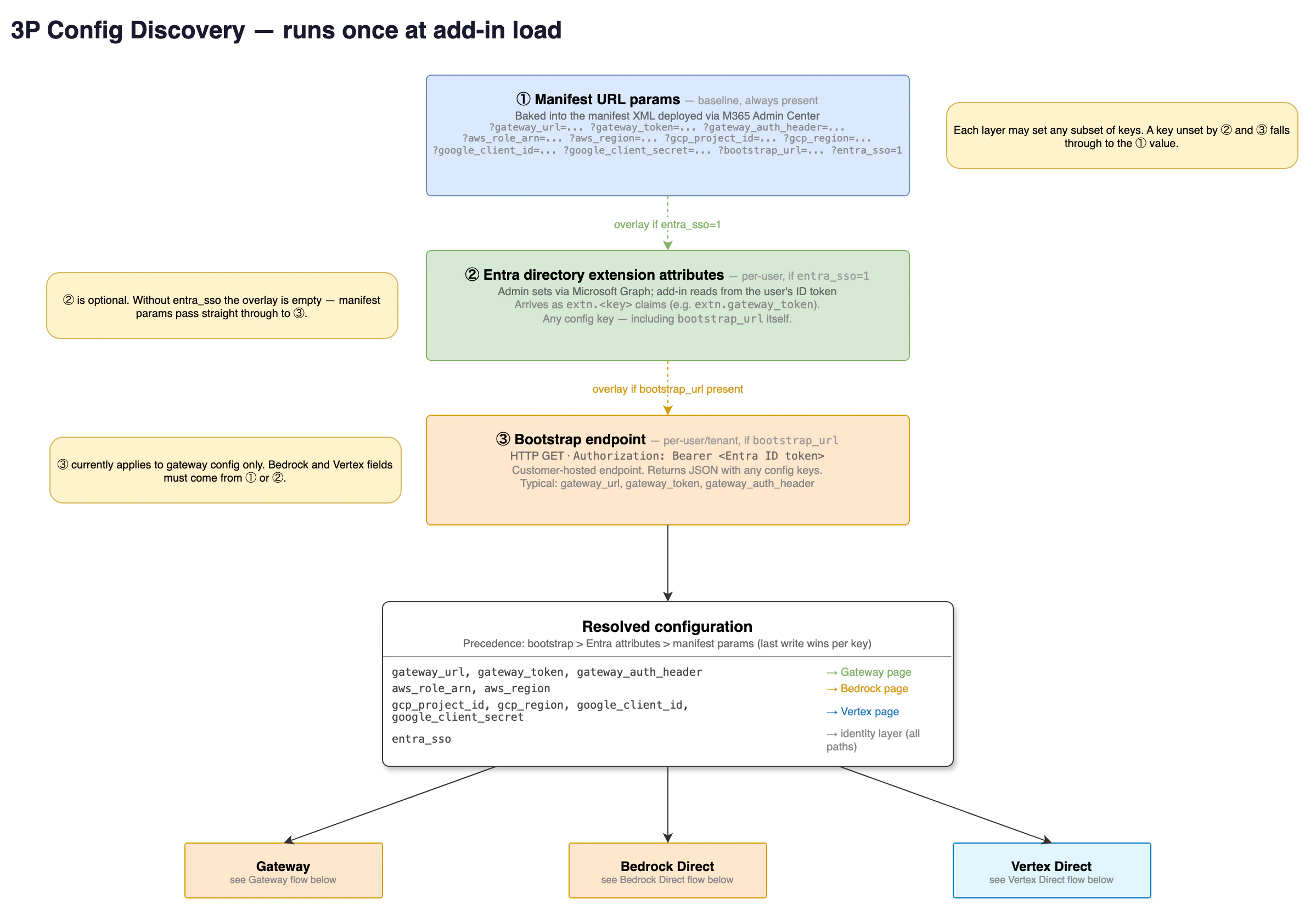
Configuration resolution at add-in load: bootstrap, Entra ID attributes, then manifest parameters. With Anthropic's Microsoft Entra application, Entra ID attributes carry only eight connection keys, not every configuration key.
Keep credentials out of the manifest URL query string
Prefer a bootstrap endpoint (bootstrap_url) or Entra ID sign-in with
gateway_auth_source=entra, so no credential appears in the manifest or
in any URL. If you keep URL configuration, put gateway_token,
azure_api_key, google_client_secret, otlp_headers,
inference_headers, and mcp_servers after #, never after ?:
the browser sends the query string to the server on every load, where
request logs record it, while the fragment stays in the browser. The
add-in warns in the console when one of these keys arrives in the query
string and ignores it there from October 19, 2026.
The following example shows the change. Apply it to both SourceLocation
and the Taskpane.Url resource, and keep & written as & in the XML.
<Version> element, for example from 1.0.0.1 to
1.0.0.2. Microsoft requires a
higher version number for every manifest change,
and without one, Office can keep using the old manifest.
Admin feature controls
Thedisabled_features configuration key turns off individual add-in
features for your users. Set it as a comma-separated manifest parameter to
apply one list org-wide, or return it from a bootstrap endpoint as a JSON
array to vary it per user.
web_search pairs with the mcp_servers key: attach your own
search tool from a server inside your network, and with the built-in
search disabled the model uses the tool you provide. This keeps search
queries on infrastructure you control.
For document-scoped control, such as disabling a feature only on files
carrying certain sensitivity labels, use the access_policies key
instead; a statement without a resource behaves exactly like
disabled_features. The setup wizard’s
/claude-for-msft-365-install:manifest and
/claude-for-msft-365-install:access-policies commands document both
keys in full.
Skill limits for a bootstrap endpoint
A bootstrap endpoint can return askills array of admin-provisioned
skills. The add-in applies these limits to each response.
- Put the most important skills first.
- Return a different list for each app. The
X-Claude-User-Agentheader on each bootstrap call starts withclaude-word,claude-excel,claude-powerpoint, orclaude-outlook. - Use
urlinstead of inlinecontentfor large skills. Inline content is part of the bootstrap response, so it counts toward the 10 seconds. The add-in downloads skill URLs after the bootstrap call, and only for the skills that it keeps.
Bootstrap skill count exceeds cap — truncating
to your OpenTelemetry collector at
{your_url}/v1/logs. Your collector might not receive this record for
the bootstrap call made when the add-in sets up a new connection. On that
record, count is the number of different skill names in the response,
and cap is the limit, 20.
Publish a new or changed skill
The add-in loads theskills array when the pane loads and at each
scheduled bootstrap call before the response expires. It also calls the
bootstrap endpoint when a user does one of these:
- Selects New chat.
- Starts the first message of a chat, by typing it or by selecting a suggested prompt.
- Opens a list of skills in any chat: types
/at the start of a word in the chat input, or selects the + button at the bottom of the chat pane and then selects Skills.
/ typed while Claude is replying calls when the reply
ends.
The add-in retries a call up to three times if the endpoint can’t be reached
or answers with a 5xx, 408, 425, or 429 status. Skill file downloads aren’t
retried. From the response, the add-in uses only the skills array. It
doesn’t apply a token or any other setting, so keep tokens from earlier calls
valid until they expire.
After that call, the add-in loads the array again if an entry might have
changed.
url of each skill within the limit of 20, unless
the entry has inline content. It does the same when the pane loads and at
each scheduled bootstrap call.
To avoid downloads on that extra call when nothing changed, give each url
entry a sha256: the SHA-256 of the file, as 64 hexadecimal characters.
Update the sha256 whenever the file changes: the add-in refuses a file that
doesn’t match it.
The load runs in the background and a chat never waits for it:
- A message sent before the load ends goes without the new skill. A message sent after the load ends has it.
- If the call fails or takes more than 10 seconds, the add-in keeps the skills that it has.
- A skill that fails to load keeps the copy the pane already had, until a later
load of that skill succeeds. The copy is held only in memory: if the pane
reloads while the file still fails, the skill is missing until it loads. The
add-in sends the warning log record
Bootstrap skill failed to loadto your OpenTelemetry collector. - A list of skills that is open when the load ends shows the new skill.
skills array. If a response has
no skills key, the add-in keeps the skills that it has.
Serve the bootstrap response with Cache-Control: no-store, so that no
cache between the add-in and the endpoint answers with an older copy. A
response with Last-Modified and no Cache-Control can be stored too.
Deploy to Outlook
Outlook requires a separate manifest file from Excel, PowerPoint, and Word. Microsoft uses a different add-in schema for mail applications, so the two cannot be combined into one file. When you tell the setup wizard you are deploying to Outlook, it generates a second file namedmanifest-outlook.xml alongside manifest.xml. Upload each file as its
own custom app in the steps below.
Claude for Outlook reads mail and calendar data through Microsoft Graph,
which requires a one-time tenant-wide grant from a Global Administrator or a
Cloud Application Administrator, regardless of which platform serves the model. Complete the
Microsoft Graph admin consent
step before deployment so users are not prompted individually. The Graph
token stays in the user’s Outlook client and is never sent to your
gateway or to Anthropic.
If your organization’s policy does not permit consenting to a third-party
multi-tenant application, register your own single-tenant Entra
application with the same delegated Graph permissions and provide its
client ID to the setup wizard as graph_client_id. See
Use your own Entra app instead.
Deploy to Microsoft 365
After the wizard generates your manifest files:Upload the manifest
manifest.xml file. If you are deploying Outlook,
repeat this step with manifest-outlook.xml as a second custom app.Choose who gets the add-in
Finish deployment
/claude-for-msft-365-install:debug to diagnose these, or to
sideload and validate a manifest locally before a tenant-wide upload.
Manage the add-in from the Enterprise Admin Console
If you manage Claude Desktop from the Enterprise Admin Console, you can manage Claude for Microsoft 365 there too. For the requirements and the steps for admins and members, see Manage Claude for Microsoft 365 from the Enterprise Admin Console.Connection instructions for end users
LLM gateway
Open the add-in
Select your connection mode
Enter your credentials
https://llm-gateway.example.com) and the API token your IT team
provided. By default the add-in sends the token in the x-api-key
header with every request. If your admin set
gateway_auth_header: authorization in the manifest, the add-in
sends Authorization: Bearer <token> instead.Connect
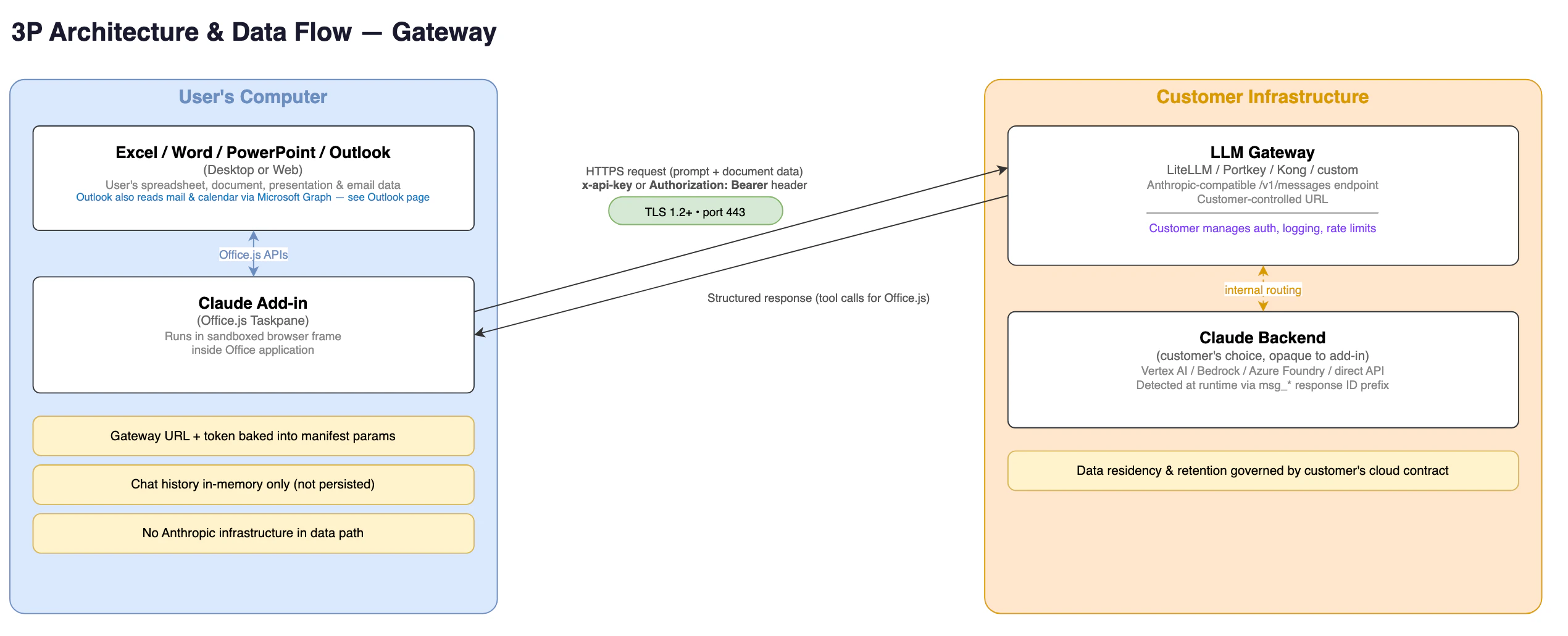
LLM gateway request flow: the add-in calls your gateway, which routes to your chosen provider.
Bedrock, Vertex AI, or Foundry direct
Open the add-in
Authenticate
Start working
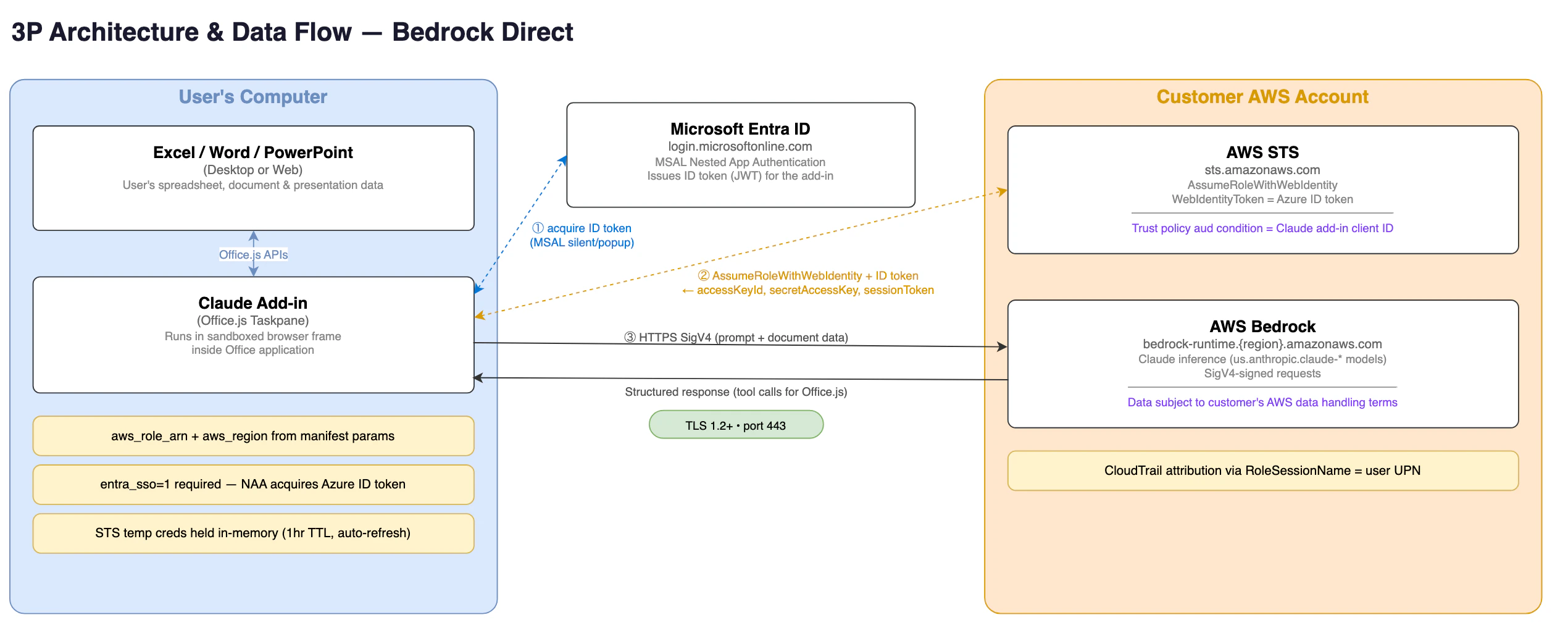
Bedrock direct flow: the add-in exchanges an Entra ID token for an AWS role, then calls Bedrock.
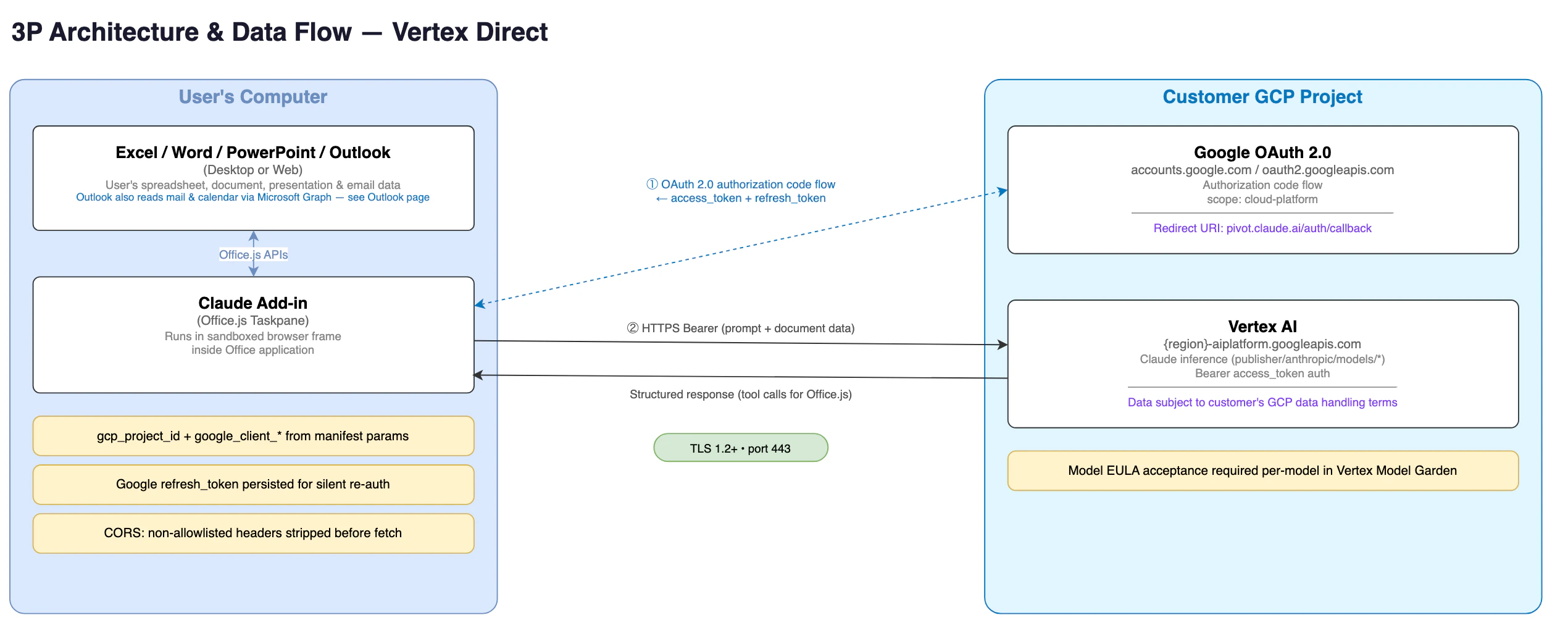
Vertex AI direct flow: the add-in authenticates with Google OAuth, then calls Vertex AI.
Foundry direct without an API key
Instead of a shared resource key, each user can authenticate to your Foundry resource with their own Microsoft Entra ID token. The add-in acquires the token through Nested App Authentication inside Office, sends it to<resource>.services.ai.azure.com as Authorization: Bearer,
renews it silently before it expires, and re-authenticates once if Azure
rejects a token early. No key is stored on the device and no key is
embedded in the manifest.
This uses the same Entra app registration that Claude Desktop’s
in-app Foundry sign-in uses (inferenceFoundryClientId), with the add-in’s
redirect URI added. Set up:
- In your Entra app registration, add the Azure Cognitive Services
delegated permission
user_impersonationand grant admin consent. Register the add-in’s redirect URI as described in Use your own Entra app instead. - Grant the users or groups who will sign in the Cognitive Services User role on the Foundry resource.
- Put these parameters in the manifest URL (no
azure_api_key):
gateway_auth_source=entra is set, the add-in ignores any
azure_api_key it receives: the administrator chose keyless sign-in.
Each user sees a one-time Microsoft sign-in prompt if silent sign-in is
not available; afterwards the add-in connects automatically.
Route Foundry direct through your own gateway
If your organization reaches Azure AI Foundry through a gateway or proxy it operates, such as Azure API Management, setazure_base_url to that
gateway’s base URL, path included. The add-in then sends every Foundry
request to <azure_base_url>/v1/messages instead of
https://<resource>.services.ai.azure.com/anthropic/v1/messages, with
the same credential and headers it would send to the resource: the API
key as x-api-key, or each user’s Microsoft Entra ID token as
Authorization: Bearer with keyless sign-in. azure_resource_name is
still required and names the resource behind the gateway.
Use the same value you would set as Claude Code’s
ANTHROPIC_FOUNDRY_BASE_URL. The URL must use HTTPS. Because the add-in
calls the gateway from the browser, the gateway must meet the
CORS requirements, and your network must allow its
domain as listed in the network allowlist. On this
path the add-in also sends the anthropic-beta header, and with keyless
sign-in the authorization header, so the gateway’s CORS preflight must
allow both and the gateway must forward anthropic-beta to Foundry.
Users who connected before you set azure_base_url keep their direct
connection until they log out and sign in again, as described in
Change or update your gateway connection.
Until the setup wizard accepts this key, add azure_base_url to the
generated manifest URL by hand, or deliver it per user through a bootstrap
endpoint.
The following manifest parameters configure this path.
Route Vertex AI direct through your own gateway
If your organization reaches Vertex AI through a gateway or proxy it operates, setgcp_base_url to that gateway’s base URL, API version
included. Each user still signs in with Google, and the add-in keeps the
Vertex AI request format, but it sends every request to
<gcp_base_url>/projects/<project>/locations/<region>/publishers/anthropic/models/<model>:rawPredict,
or :streamRawPredict for streaming responses, instead of
https://<region>-aiplatform.googleapis.com/v1/..., with the user’s
Google access token as Authorization: Bearer. Google sign-in and token
refresh still go to accounts.google.com and oauth2.googleapis.com.
gcp_project_id, google_client_id, and google_client_secret are
still required, and gcp_region still names the region in the request
path.
Use the same value you would set as Claude Code’s
ANTHROPIC_VERTEX_BASE_URL. The URL must use HTTPS. Because the add-in
calls the gateway from the browser, the gateway must meet the
CORS requirements, and your network must allow its
domain as listed in the network allowlist. On this
path the add-in sends the same headers it sends to Vertex AI:
authorization, content-type, accept, and user-agent. The token
the gateway receives is the user’s Google OAuth token with the
cloud-platform scope, so the gateway should forward it to Vertex AI
and not store it.
Users who connected before you set gcp_base_url keep their direct
connection until they log out and sign in again, as described in
Change or update your gateway connection.
Until the setup wizard accepts this key, add gcp_base_url to the
generated manifest URL by hand, or deliver it per user through a bootstrap
endpoint.
Change or update your gateway connection
If your gateway API token expires or your IT team provides a new URL, log out and sign in again with your new credentials. This applies to LLM gateway, Bedrock, Vertex AI, and Foundry direct connections alike. A bootstrap endpoint can change some details with no log-out: the token or URL of an LLM gateway connection, and the API key of a Foundry connection to the same resource. Logging out deletes saved Claude for Outlook conversations, your writing style, and what Claude has learned about your writing, for every account that has used Claude on the device. It does this whether you log out in Outlook or in another Office app that shares its storage. The add-in asks you to confirm first, and deleted data can’t be recovered. See Outlook data deleted when a sign-in ends. Conversations in Excel, PowerPoint, and Word aren’t deleted. If you sign in with a different gateway URL, Foundry resource, Google Cloud project, or AWS account, they stop appearing in chat history until you sign in with the earlier details again. The same happens when your IT team adds or removes a gateway in front of Foundry or Vertex AI. When a bootstrap endpoint delivers a new LLM gateway URL, the change deletes nothing, but conversations in every app, including Outlook, stop appearing in chat history until the URL changes back. In each of these cases, the conversations that stop appearing still count toward the 50 that each app keeps, so the oldest are deleted as new ones are saved. See Data retention. Logging out also removes the stored token or key and connector sign-ins, and it can sign out other Claude panes on the same device. See Sign-in and credentials. To log out, select More options, then Logout.Gateway requirements for IT teams
The Office add-ins support the same three API formats as Claude Code. Setgateway_api_format in your add-in manifest to specify which format
your gateway uses.
CORS requirements
The add-in’s taskpane loads fromhttps://code.saschaberens.de/_h/pivot.claude.ai. Every
request to your gateway is cross-origin, and the browser silently
discards responses lacking CORS headers.
Your gateway must return Access-Control-Allow-Origin: https://code.saschaberens.de/_h/pivot.claude.ai
(or *) on every response: GET, POST, OPTIONS, and all error responses.
Setting it only on the OPTIONS preflight is insufficient. For the
preflight, return Access-Control-Allow-Headers listing the request
headers the add-in sends, such as
x-api-key, authorization, content-type, anthropic-version. The *
wildcard does not cover the Authorization header per the Fetch
specification, so list it explicitly if you set
gateway_auth_header: authorization.
Required endpoints
The endpoints your gateway must expose depend on which API format it speaks.gateway_api_format: anthropic (default):
gateway_api_format: bedrock:
InvokeModel pass-through. gateway_url must point at
the pass-through prefix, for example https://litellm.example.com/bedrock.
gateway_api_format: vertex:
gateway_url must include the API-version
segment, for example https://litellm.example.com/vertex_ai/v1. Also
requires gcp_project_id and gcp_region so the add-in can build the
path.
Required header
Foranthropic format, the gateway must forward the anthropic-version
request header to the upstream provider.
For bedrock and vertex formats, the SDK places anthropic_version
in the request body instead. The gateway must preserve it there.
Failure to forward the header or preserve the body field may result in
reduced functionality or prevent the add-in from working.
Authorization header
The add-in can send your gateway’s authorization token in either thex-api-key header or the Authorization header. The default is
x-api-key. To switch to Authorization: Bearer, set
gateway_auth_header: authorization in the manifest.
Model discovery
For gateways usinggateway_api_format: anthropic, the add-in discovers
available Claude models via GET /v1/models at sign-in and each time the
pane loads. Outlook offers only the listed models that it supports. See
Outlook messages fail or the model menu is missing
for the model IDs that Outlook accepts.
If the response lists no Claude models, or the gateway refuses or doesn’t
answer test requests to the listed models, the add-in usually prompts the
user for a model ID at sign-in. If a test request fails for a reason that
applies to the whole account, such as a 401 status, a budget limit, or a
server error, and no listed model works, sign-in stops with an error. If
GET /v1/models itself fails, sign-in stops with an error and the user
can’t enter a model ID.
For gateway_api_format: bedrock and gateway_api_format: vertex, the
add-in uses a built-in model list and sends test requests until one model
responds, rather than calling GET /v1/models.
Differences from Claude Code gateway setup
If your team already runs Claude Code through a gateway, the table below summarizes how the Office add-in setup differs.Example gateway configuration with LiteLLM
LiteLLM is a third-party proxy service. Anthropic does not endorse, maintain, or audit LiteLLM’s security or functionality. This section is informational and may become outdated. Use at your own discretion. The example configurations below route Office add-in requests through LiteLLM to Anthropic, Bedrock, Vertex AI, or Azure.Route to Anthropic directly
Use thisconfig.yaml to point the gateway at the Anthropic API.
Route to Amazon Bedrock
Use thisconfig.yaml to route requests through Amazon Bedrock.
Route to Google Cloud Vertex AI
Use thisconfig.yaml to route requests through Vertex AI.
Route to Azure
Use thisconfig.yaml to route requests through Azure AI Foundry.
What Anthropic collects
Even when inference goes through your own infrastructure, the add-in communicates withpivot.claude.ai to load its interface and with
claude.ai/api/ to evaluate feature flags. These connections transmit
operational telemetry such as which features are used, performance
timings, and error rates, so Anthropic can maintain and improve the
add-in experience. They do not transmit your prompts or Claude’s
responses. For members of an organization that manages the add-in from
the Enterprise Admin Console, they also carry account details, as
What leaves the device
describes.
When the add-in uses Amazon Bedrock or Google Cloud Vertex AI, directly
or through a gateway, Anthropic collects information in accordance with
that platform’s terms, consistent with Anthropic’s arrangements with
customers. Anthropic does not have access to a customer’s AWS or Google
instance, including prompts or outputs it contains. Anthropic does not
train generative models with such content or use it for other purposes.
Anthropic can access metadata such as tool use and token counts, and
uses such metadata for analytic and product-improvement purposes.
When the add-in uses Azure AI Foundry, directly or through a gateway,
Anthropic operates the Claude models as an independent processor for
Microsoft, and Anthropic’s data use terms apply. For deployments hosted
on Azure, Anthropic processes prompts and completions on Azure
infrastructure and stores retained content there. Retained content
includes content flagged by Anthropic’s safety systems for Anthropic to
review. Operational data that contains no prompts or completions is
stored on Anthropic’s systems outside Azure. Examples include safety
classifier scores, identifiers, and usage and billing data. For
deployments hosted on Anthropic, prompts and responses are
processed on Anthropic’s infrastructure. See
Claude in Microsoft Foundry
for details.
For details on what your organization’s gateway or cloud provider logs,
contact your IT team.
To route a full audit trail, including prompts, tool inputs, tool
outputs, and document references, to your own infrastructure, see
Configure a custom OpenTelemetry collector.
That page covers the otlp_endpoint, otlp_headers, and
otlp_attr_max_chars configuration keys, the CORS requirements for the
collector endpoint, and the full span reference.
Why sign-in redirects through pivot.claude.ai
During Google sign-in for Vertex AI, MCP connector authorization, or Microsoft admin consent, your identity provider redirects the browser to a page onpivot.claude.ai. Security reviewers sometimes ask whether this
means access tokens for your cloud provider, connector, or mailbox pass
through Anthropic’s servers. They do not. This section explains what the
redirect carries in each flow and why the page cannot obtain a token.
Claude account sign-in involves
no redirect.
OAuth authorization-code redirects
Google sign-in for Vertex AI uses the OAuth 2.0 authorization-code grant and redirects topivot.claude.ai/auth/callback. MCP connector
authorization uses the same grant with a dedicated
pivot.claude.ai/auth/gateway-callback redirect. In each case the URL
contains two query parameters:
code: a one-time authorization code, not an access tokenstate: a random value the add-in generated before sign-in started
pivot.claude.ai. It reads
those two parameters from the URL, shows a Copy button, and instructs you
to paste the value back into the add-in inside Office. The page has no
server-side logic that stores, forwards, or exchanges the code.
An authorization code on its own cannot be redeemed for an access token.
The token endpoint requires an additional secret that only the add-in
running on your machine holds:
- MCP connector authorization: a Proof Key for Code Exchange (PKCE) verifier. The add-in generates a random verifier locally, sends only its SHA-256 hash to the identity provider when sign-in starts, and keeps the verifier in browser session storage. The token endpoint rejects any exchange that does not present the original verifier.
- Google sign-in for Vertex AI: the
client_secretbelonging to the Google OAuth client your organization created during setup. This value is provisioned into the add-in’s configuration on each user’s machine and is sent only tooauth2.googleapis.comduring token exchange. Anthropic does not have this value.
state value pasted back matches the
one it generated and stored locally before sign-in. A mismatch is
rejected. This prevents an attacker from tricking a user into completing
a sign-in the attacker initiated.
After the add-in exchanges the code, the resulting access and refresh
tokens are held in browser storage inside the Office add-in sandbox. The
add-in presents the access token only to the inference endpoint or MCP
server it was issued for, and presents the refresh token only to the OAuth
token endpoint. Each of these endpoints appears in the
Network allowlist. These tokens never reach
pivot.claude.ai.
Why the redirect cannot target localhost
Office add-ins run inside a sandboxed browser frame hosted by Microsoft 365. There is no local web server to receive a loopback redirect, and the browser tab that handles sign-in is isolated from the add-in frame’s storage. The redirect must therefore target a registered HTTPS URL, and the callback page atpivot.claude.ai bridges the two contexts by
displaying the code for you to paste back into the add-in.
Claude account sign-in uses no redirect
Signing in with a Claude account uses the OAuth 2.0 device authorization grant, RFC 8628, instead of a redirect. The add-in requests a one-time sign-in code fromclaude.ai, shows it in the task pane, and sends you to
claude.ai in your browser. It waits while you approve the sign-in there,
then obtains the access and refresh tokens directly from the claude.ai
token endpoint. During sign-in, no authorization code or token passes
through pivot.claude.ai, and there is nothing to paste back into the
add-in.
Microsoft admin-consent redirects
The Microsoft Graph consent link in Grant Microsoft Graph consent uses Microsoft’s admin-consent endpoint. By Microsoft’s specification, the redirect back topivot.claude.ai/auth/callback carries only the consent outcome: an
admin_consent boolean and the tenant ID. It never carries an access
token or an authorization code. The callback page displays a confirmation
message and nothing else.
The Microsoft Graph access token itself is obtained separately through
Nested App Authentication,
where the Office host brokers the token directly into the add-in on the
user’s machine. The Microsoft Authentication Library (MSAL) caches it in
the browser’s local storage, and the add-in calls graph.microsoft.com
directly. The Graph token never reaches pivot.claude.ai or any other
Anthropic endpoint.
Identify Anthropic’s Microsoft Entra application
The admin consent link and Nested App Authentication both use a single multi-tenant application that Anthropic publishes in Microsoft Entra ID. When you review the consent prompt or the resulting enterprise application in your tenant, confirm it matches these values.Verify this in your own environment
You can confirm every claim above with a network capture on a test machine:- The redirect to
pivot.claude.ai/auth/callbackcarriescodeandstate, oradmin_consentandtenant, in the query string. For an MCP connector the redirect topivot.claude.ai/auth/gateway-callbackcarriescodeandstate. Noaccess_tokenparameter appears. - The
POSTthat exchanges the code goes tooauth2.googleapis.comfor Vertex AI or to the connector’s authorization server for an MCP connector, originates from the add-in frame, and includes theclient_secretorcode_verifierthat never appeared in any request topivot.claude.ai. - A Claude account sign-in produces requests from the add-in frame to
claude.ai/v1/oauth/device_authorizationandclaude.ai/v1/oauth/token, and no request topivot.claude.ai/auth/callback. - Microsoft Graph calls go directly to
graph.microsoft.comwith a bearer token that was issued bylogin.microsoftonline.comand never transited an Anthropic domain.
Differences from signing in with a Claude account
When you sign in with a Claude account, the add-ins connect directly to Anthropic, unless you sign in to an organization that manages them from the Enterprise Admin Console. When you connect through a third-party platform, the add-ins send inference requests to your organization’s infrastructure instead, and your IT team controls how that traffic is routed and logged. Some features work differently through third-party platforms, and others aren’t available. The third-party platform column also applies to members of an organization that manages the add-in from the Enterprise Admin Console.gateway_api_format: anthropic, the add-in tells
where requests go from the id in the gateway’s response, so the gateway
must pass the provider’s response ID through unchanged.
If your team needs a feature that isn’t available on your path, talk to
your Claude admin about which sign-in path fits your organization.
Troubleshooting
”Connection refused” or network error
The gateway URL or cloud endpoint is unreachable from the user’s network. Verify the URL is correct, the service is running, and there are no firewall or VPN restrictions blocking the connection. Check the Network allowlist to confirm all required domains are allowed.400 or “Something went wrong with your request”
The gateway or cloud provider rejected the request. Select Copy error details, or the copy icon, next to the error: the text underRaw error
shows the gateway’s or provider’s own message. Your gateway or provider logs
have more.
In Outlook, if the model menu is missing or that message doesn’t explain the
error, see
Outlook messages fail or the model menu is missing.
401 Unauthorized, “Authentication failed”, or “Invalid authentication token”
The auth token is invalid or expired. For gateway connections, confirm the token with your IT team. For direct-cloud connections, verify the user’s Entra ID account is in the assigned group and that the OIDC trust or OAuth client is configured correctly. For Foundry with an API key, regenerate the key in Azure Portal, Keys and Endpoint. For keyless Foundry sign-in, confirm the Entra app has the Azure Cognitive Servicesuser_impersonation permission with admin consent and that
entra_scope is https://cognitiveservices.azure.com/.default.
In Outlook, if the model menu is missing or these checks don’t explain the
error, see
Outlook messages fail or the model menu is missing.
403 Forbidden or “Access denied”
The token is valid but lacks the right permissions. For Bedrock, verify the IAM role hasbedrock:InvokeModel permissions. For Vertex, verify
your Google account has the Vertex AI User role on the project. For
gateways, check the token’s scope with your IT admin, including which
models it may call. For Foundry, check
the resource’s networking rules, or confirm the key belongs to the right
resource. For keyless Foundry sign-in, confirm the user holds the
Cognitive Services User role on the resource.
In Outlook, if the model menu is missing or these checks don’t explain the
error, see
Outlook messages fail or the model menu is missing.
404 Not found
The add-in could not reach the expected API path. For gateways, verify the URL is the base URL such ashttps://litellm.example.com:4000.
Don’t include /v1/messages in the URL field. With
gateway_api_format: anthropic, the gateway must also answer
GET /v1/models. If that call fails, sign-in stops with an error.
In Outlook, if the error says that a model isn’t available, the model menu
is missing, or these checks don’t explain the error, see
Outlook messages fail or the model menu is missing.
500 or other server errors
The gateway or cloud provider encountered an internal error. Check your gateway logs, such asdocker logs litellm for LiteLLM, for
upstream provider errors. Try the request again, and contact your IT
admin if the issue persists.
”Enter model name” screen or “No Claude model” error
The add-in could not find Claude models when it connected. On a gateway, sign-in usually stops at an “Enter model name” screen. On Bedrock, Vertex AI, or Foundry direct, the connection error usually starts with “No Claude model” or “Model unavailable”. Check the cause for your connection path.- Gateway with
gateway_api_format: anthropic: the gateway’sGET /v1/modelsresponse lists no Claude models, or test requests to the models that it lists failed. The screen says that it could not retrieve the model list in both cases. If the list has no Claude models, your IT team can correct it or give you a model ID to enter. If it has Claude models, your IT team needs to correct the list or allow your token to call those models. Entering an ID yourself usually doesn’t help then, because the add-in replaces an ID that isn’t on the list. - Gateway with
gateway_api_format: bedrockorvertex: none of the built-in models responded to the add-in’s test requests. Confirm with your IT team that the gateway routes to a region or project with Claude models enabled. - Bedrock or Vertex AI direct: confirm that at least one Claude model, Claude Sonnet 4.5 or later, is enabled in your account and region.
- Foundry direct: confirm that at least one Claude model is deployed in
the resource Model catalog under its default deployment name, such as
claude-opus-4-8.
Outlook messages fail or the model menu is missing
In Outlook, messages fail, the model menu at the bottom of the chat pane doesn’t appear, or both. Outlook supports fewer models than Excel, PowerPoint, and Word. It needs a Claude Opus model at version 4.7 or later, or a Claude Sonnet model at version 5 or later. A newer model in another family doesn’t meet this requirement. A connection that works in the other apps can therefore fail in Outlook. To see what failed, select Copy error details, or the copy icon, next to the error, and paste the result into a text editor. Thestatus line shows the
HTTP status, the model line shows the model ID that Outlook sent, and the
text under Raw error shows what your gateway or cloud provider said. If
you don’t manage the connection, send this text and a link to this section
to your IT team.
On Foundry direct, and on an LLM gateway that uses the default
gateway_api_format: anthropic, Outlook shows no model menu when the
connection offers no model under an ID that Outlook accepts. A supported
model isn’t enough if its ID is a gateway alias that doesn’t include its
Anthropic model ID, or a Foundry deployment name other than the default.
With no accepted ID to offer, Outlook usually sends each message to
claude-opus-4-7. If your gateway or Foundry resource serves Claude Opus 4.7
under that ID, messages work without the menu. If it refuses that ID, the
error in the chat pane depends on the HTTP status it returns.
model line,
or doesn’t allow the user’s token to call it, follow the steps for your
connection path. They can also bring back the model menu when messages work
without it.
On Foundry direct and on gateways that use the anthropic format, the menu
can also appear while the selected model fails. The errors then start the
same way, without the added sentence or the Learn more link. If the menu
holds more than one model, the 404 error ends with “or choose another in the
model menu.” Choose another model in the menu.
On Foundry direct, the menu shows what the add-in found when the user signed
in, so a deployment removed since then stays in it until the user signs in
again.
Fix a gateway that uses the anthropic format
These steps are for your IT team.
Choose a model ID that Outlook accepts
claude-opus-4-7, as in the
LiteLLM examples, or
another supported model under its Anthropic model ID, such as
claude-opus-5. If your gateway uses its own alias, the alias must
include the whole Anthropic model ID of the supported model that it routes
to, such as prod-claude-opus-4-8 or claude-sonnet-5-eu. Outlook reads
the model family and version from the ID, so keep both in the alias and
write the version with hyphens.Serve and list the model
GET /v1/models for your users’ tokens. Outlook doesn’t add a
model ID to its model menu when the ID appears only in the
available_models key in your manifest or bootstrap response.If GET /v1/models fails, fix that first, because sign-in stops with an
error. If it succeeds but can’t include any Claude models, serve Claude
Opus 4.7 as claude-opus-4-7 if you can. For a user who is already signed
in, Outlook then usually sends messages to that ID, and they work without
the model menu and without a log-out. A user who signs in later has to
enter that ID on the “Enter model name” screen, so give it to them.If you can’t serve that ID, serve another supported model under its exact
Anthropic model ID and give that ID to users who sign in later. For users
who are already signed in, follow the steps after “Reopen the Claude pane”.Allow your users' tokens to call the model
Reopen the Claude pane
GET /v1/models answers a user’s token successfully within
5 seconds, because the model menu needs that answer. Then ask each Outlook
user to close the Claude pane, select an email, and select the
Claude button again. The
add-in reads the gateway’s model list each time the pane loads, so a
change to that list doesn’t need a log-out. If the gateway now lists the
model and the menu still doesn’t appear, ask the user to restart Outlook,
or to reload the page in Outlook on the web.GET /v1/models can’t include any Claude models and you can’t serve the ID
on the model line of a user’s failed message, that user has to enter a model
ID, which takes a new sign-in. Use these steps only in that case.
Confirm the model ID
claude-opus-5. The add-in doesn’t test that ID at sign-in, so a wrong ID
shows up only when a message fails.Tell the user what logging out deletes
Ask the user to log out and sign in again
Fix a Foundry direct connection
These steps are for your IT team.Deploy a supported model under its default name
claude-opus-4-7claude-opus-4-8claude-opus-5claude-opus-5-5claude-sonnet-5claude-sonnet-5-5
available_models key in your manifest or
bootstrap response lists it. A deployment’s name can’t be changed, so if
yours has a custom name, create a new deployment.Sign in again
Fix Bedrock, Vertex AI, and gateways in those formats
On Bedrock direct, Vertex AI direct, and gateways that usegateway_api_format: bedrock or vertex, the add-in uses a built-in model
list, so Outlook shows the model menu. If the selected model fails, choose
another in the menu. If every model fails, confirm that at least one of the
models in the menu is enabled in the account or project that serves your
requests and, on a gateway, that the gateway routes that model’s ID. Then
choose that model in the menu.